Create your own brick building instructions in 10 minutes
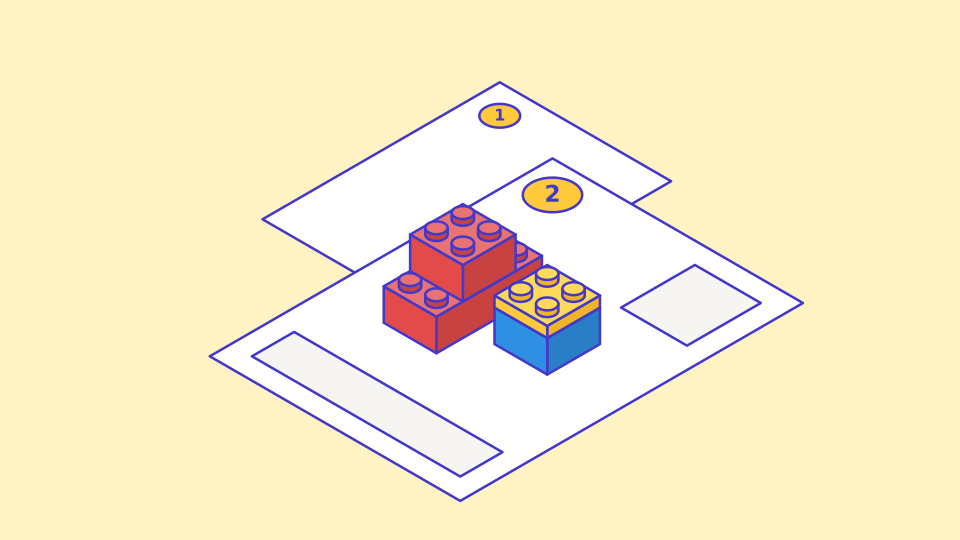
Making your own building instructions used to be a chore: photograph the model, take it apart step by step, sort the pictures, count the parts, lay everything out in a document. With lay-a-brick that work disappears. You build your model in the browser, and the instructions grow alongside it – with a parts box for every step, a parts list and a cover page. The ten minutes in the title are meant literally: for a small model like the duck from the examples (32 bricks), that is enough time, printing included.
What you need
- A browser on a laptop, tablet or phone. There is nothing to install, and lay-a-brick is free.
- No account. You only need one to save models in the cloud or publish them. In the browser your model is saved automatically.
- Optionally, the bricks you have at home. The editor offers 29 part types in 26 colours – bricks from 1×1 to 2×8, plates from 1×1 to 4×4, three tiles, two 45° slopes, plus a round brick and a round plate. That covers the basic stock of most brick boxes.
Here is how the time breaks down for a model of 30 to 60 bricks:
| Step | What happens | Time |
|---|---|---|
| 1 | Build the model | 4–6 minutes |
| 2 | Check for floating bricks | 1 minute |
| 3 | Open the instructions and pick a layout | 1 minute |
| 4 | Adjust steps (optional) | 1–2 minutes |
| 5 | Print, save as PDF or share | 1 minute |
Step 1: Build the model
Open the editor and pick a baseplate. 16×16 studs is plenty to start with; 32×16, 32×32 and 48×48 are there for bigger models. The parts bar sits on the left. Click a part, then click on the baseplate – the brick is placed. Put a brick on top of another and it stacks automatically; you never set a height by hand.
The moves you will use most:
- R rotates the selected part.
- Dragging with the mouse button held down lays a whole row of the same brick – handy for walls and floors.
- Right-click on a brick removes it.
- Right mouse button and drag turns the camera; the scroll wheel zooms.
- Ctrl+Z undoes any action, up to 500 steps back.
The tools have keyboard shortcuts: Build (B), Select (V), Paint (F), Erase (E) and the Eyedropper (I), which picks up a colour from the model. If you prefer a list, all keyboard shortcuts are on one page.
The layer slider hides the upper layers. That is how you reach spots under a roof or behind a wall. One layer equals one plate, 3.2 mm; a brick is three plates tall (9.6 mm). The grid is 8 mm from stud to stud – the standard pitch your bricks at home use as well.
If you would rather start from a finished model, the duck, the house and the lighthouse all open in the editor and can be changed. More templates are waiting in the example models.
Step 2: Check for floating bricks
A brick is "floating" when it has no stud connection below or above it. On the table it would simply fall off; in the instructions it cannot be assigned to any step. So the editor warns you as soon as a brick without support sits in the model and shows you which one when you click the warning. Move it onto a stud or slip a plate underneath – done.
The check pays off twice: a model that runs through without a warning also holds together in real life. Which parts suit which job is covered in the guide Brick, plate, tile, slope.
Step 3: The instructions build themselves
Open the instructions view. lay-a-brick breaks your model down by fixed rules:
- Layer by layer, from the bottom up.
- Within a layer, only bricks that already have support.
- Every step gets a parts box: which parts, how many, in which colour.
- New bricks are drawn with a dark outline; what was already built stays light.
- A small top-down view shows where the new bricks sit on the baseplate.
On top of that come a cover page with a picture and a fact line (bricks, part types, steps) and the complete parts list at the end. There is nothing to label and no picture to crop. The number of steps depends less on the brick count than on how many bricks in a layer have support at the same time: a flat floor is one step, a tower of 1×1 bricks needs many.
Step 4: Adjust steps and choose a layout
The automatic split is right most of the time. Where it is not, you step in:
- Merge: two steps of two bricks each become one step of four. Useful for floors and walls.
- Split: one step with 20 bricks becomes two steps of ten for younger builders.
- Move: a step slides forward or back if that makes the model easier to build. The system will not let you move a brick ahead of its support.
Then pick how many steps go on one A4 page (the print dialog lets you switch paper sizes if you print on Letter):
| Steps per page | Best for |
|---|---|
| 1 | Children from about 6, large steps, models with many details |
| 2 | Most models – easy to read, economical to print |
| 4 | Experienced builders, simple models, less paper |
For a school class or a craft fair, go with four steps per page and save paper; for a gift, one step per page with a big picture.
Step 5: Print, PDF, share
Printing runs through your browser's print dialog. There you choose a printer or "Save as PDF". The PDF can be emailed, opened on a tablet or printed at a copy shop.
There are two more ways to share:
- Link: every model gets a short address. Anyone who opens it sees the model and the instructions in the browser – no account, no app.
- QR code: print it on the cover page or stick it on the brick box. Point a phone at it and the instructions open.
On a phone the instructions switch to a step-by-step mode: one step per screen, swipe for the next. That is how you build next to the brick pile on the carpet, with no paper and no hunting around a page.
Everything – model, instructions, print path – lives in your browser. There are no ads, no cookies and no waiting for a server. Export as a file backs your model up on your hard drive; a PNG image shows it off in a chat or on grandma's screen. You only need an account once you want to publish your model in the gallery, where others can build it and remix it.
Build your first instructions now
Ten minutes, 32 bricks, print-ready instructions – start with the duck or build something of your own. Open the editor and place the first brick.